Prelude and Motivation
After trying out and fiddling with a plethora of existing and
self-written software to organize my notes, I have decided I need to
stop experimentation and choose a solution that is sufficient, but
most importantly, one that I actually will use and have migrated all
my existing notes to. Note taking systems are not an end unto
themselves.
Roughly speaking, my essential requirements are:
- Something that works with plain text, and ideally supports Markdown
as that is the syntax I publish most things in and I am most
familiar with.
- Something that can be used from Emacs, because that’s where I do
most my text editing and writing.
- Something that stores a note per file.
This has just proved to be the most future-proof way.
- Some basic means of connecting notes.
I found I don’t need these things:
- Support for direct HTML publishing, as I realized that most of my
notes are written for myself and I’ll put them up somewhere else for
publishing. (This usually involves prior editing anyway.)
- Having a fancy UI and graph displays. I consider these goodies I
can easily go without.
- Specialized productivity features like to-do lists, date scheduling
or time tracking. These are out of scope for my use: I use a
regular calendar for things with a deadline (which I’m blessed to
have very few of) and will stick to simple to-do lists for my
personal projects.
Many people would recommend me org-mode now,
but I’ve never been a fan of its clunky syntax and I really don’t need
most of the features. org-roam at first
looked promising but linking between notes is quite complicated and the
database dependency seems to be overkill for a personal note taking
system on modern hardware.
I decided to settle on howm, an Emacs mode
that is not very well-known in the Western world but has gained a
certain following in Japan.
It’s a roughly 20-year-old Emacs mode that’s still being used and
maintained by its original author Kazuyuki Hiraoka, so I have
confidence it will be around for some more time. You can format notes
however you like, so I can use Markdown as I prefer. Notes are one
file per note by default (but see below). It actually has features
for date scheduling and to-do lists, but I won’t go deeper into them
for now. Its code is reasonable simple and well structured, so I was
able to extend it in a few ways easily, as I’ll detail at the end of
this post.
What really sold me was this quote I found on the mailing list:
I cannot show a good general guide because I’m lazy, loose, and bad at
tidying. I’ve already given up well-ordered notes. Howm may be
suitable for those who are tired from strict systems.
— Kazuyuki Hiraoka
Such an undogmatic system is just right for my purposes.
How howm works
Since there are very few resources in English that explain howm
(apart from this
2006 article
that got lost in time), I shall give a quick introduction for the
interested reader:
howm is short for “Hitori Otegaru Wiki Modoki”, which roughly
translates to “Single-user Easy Wiki Mode”.
The basic feature set of howm is very simple, and can be condensed
into the mantra “write fragmentarily and read collectively”.
Essentially, howm provides an Emacs minor mode for marking text to
trigger certain searches. Since it is a minor mode, you can use
whatever major mode you like to use for your writing (e.g., I currently use
markdown-mode).
Howm notes are kept in a directory hierarchy that you can organize how
you wish; by default a date-based system is used and filenames include
the current timestamp at creation. This provides unique and sensible
note identifiers, so I stick to it. You also can create explicitly
named note files, but I haven’t found a use for them yet.
There are two essential kinds of markup howm cares about:
note titles and links. By default, titles are marked up
by putting a ‘=’ at the beginning of the line, but this can be configured
(and must be done so before loading howm-mode(!)).
The benefit of adding a title to a note is that you can have
the summary buffer show titles instead of matching lines,
which can be helpful to get a better overview of search results.
(The creator of howm is sceptical of titling all notes, I think it
very much depends the average length of your notes.
There is no requirement to use titles.)
There are two kinds of links supported by howm, namely goto and
come-from (in a nod to INTERCAL). goto links are forward
references and written like this:
>>> howm
Pressing return on this line when howm-mode is enabled will show a
list of all occurences of the word howm in your notes directory.
In contrast, a come-from link is written like this:
<<< howm
And this will cause the word howm in any howm-mode buffer to be
underlined and trigger a search where the buffer with <<< howm
will appear first.
Thus, compared to most contemporary hypertext systems, we not only
have a means of explicitly linking to other notes, but also for
creating implicit contextual links—which can help you find connections
between your notes that you didn’t see yet…
It is straightforward to implement something like #tags or WikiWords
using these features, if you wish to do so.
Additionally, howm provides an inline link syntax [[...]] that works
like >>>
but can appear within a line. I make a suggestion below how to turn
it into a direct link to the first page with the given title; but for
now I decided not to use this very much.
The line-based nature of the >>> syntax prevents usage for “inline”
links. After giving it some thought, I consider it a strength for a
note-taking system to make forward links related to a paragraph and
not part of a sentence. Additionally, it also makes the plain text
easier to read as the link target is not interleaved into the text.
(Compare with the use of reference-style links in Markdown.)
An aside: howm actually supports multiple notes per file by having
multiple title lines in a file. The search summary will always show
the title directly before the matching line. You can use C-c , C to
create a new note in the current buffer. I don’t use this much, but I
think it could be useful for glossary files that contain many short
notes. Some people also use this for keeping multiple daily notes in
a single file.
Using howm
Howm provides two main features to access notes: the menu and the
summary buffer. The howm menu (shown with C-c , ,) provides a very
customizable view into your howm notes. By default it shows your
schedule, recent notes, and random notes. You can access many howm
features with a single keypress from the menu. Since I don’t use the
scheduling feature, I mostly access howm from the summary buffer
instead.
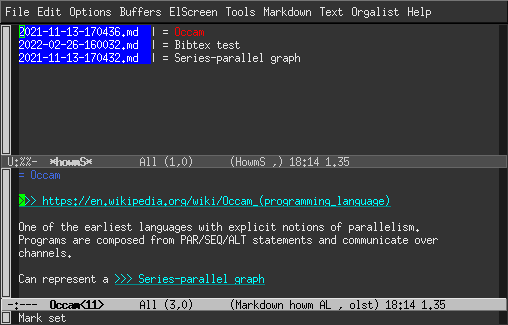
The howm summary buffer shows the result of a search (C-c , g), a
list of recent notes (C-c , l), or an overview of all notes (C-c , a).
It is very convenient to see the matches and you get a preview
of the note when you move the cursor to a search result. Typing RET
will open the note for editing. Typing T will toggle between
displaying matching lines or the titles of notes with matches.
In the summary buffer, you can also type @ and read all matching
notes in a concatenated way, so you get the full context of all notes
at once.
Setting up and customizing howm
Basic setup is reasonably well documented in English, but I’ll
summarize it here. You can get howm from ELPA these days, so
installing is very easy. You should set some variables to configure
it according to your needs:
;; Directory configuration
(setq howm-home-directory "~/prj/howm/")
(setq howm-directory "~/prj/howm/")
(setq howm-keyword-file (expand-file-name ".howm-keys" howm-home-directory))
(setq howm-history-file (expand-file-name ".howm-history" howm-home-directory))
(setq howm-file-name-format "%Y/%m/%Y-%m-%d-%H%M%S.md")
Here, we decide that ~/prj/howm is the base directory for our howm
notes, and we also put the two auxiliary files howm uses there.
Additionally, we change the default name format to end with .md
(which also turns on markdown-mode by default).
Next, we want to use ripgrep
for searching howm. For my usage, plain GNU grep would be sufficient,
but I want to use ripgrep in the next step too, so for consistency
let’s use it for all searches:
;; Use ripgrep as grep
(setq howm-view-use-grep t)
(setq howm-view-grep-command "rg")
(setq howm-view-grep-option "-nH --no-heading --color never")
(setq howm-view-grep-extended-option nil)
(setq howm-view-grep-fixed-option "-F")
(setq howm-view-grep-expr-option nil)
(setq howm-view-grep-file-stdin-option nil)
The next addition is interactive search with ripgrep (C-c , r).
This is the most useful feature I added to howm myself.
I think it provides a great way to interact with your notes, as you get
instant feedback from your search terms, and can stop searching as
soon as you found what you were looking for.
I used counsel-rg as an inspiration for this, and we turn the ripgrep matches
into a regular howm summary buffer for further consumption.
;; counsel-rg for howm
(defun howm-list--counsel-rg (match)
  (if (string= match "")
  (howm-list-all)
(if (or (null ivy--old-cands)
	(equal ivy--old-cands '("No matches found")))
        (message "No match")
  (let ((howm-view-use-grep
	 #'(lambda (str file-list &optional fixed-p force-case-fold)
                 (mapcar
                  (lambda (cand)
		(if (string-match "\\`\\(.*\\):\\([0-9]+\\):\\(.*\\)\\'" cand)
                        (let ((file (match-string-no-properties 1 cand))
			  (line (match-string-no-properties 2 cand))
			  (match-line (match-string-no-properties 3 cand)))
                          (list (expand-file-name file howm-directory)
                                (string-to-number line)
                                match-line))))
                  ivy--old-cands))))
        (howm-search ivy--old-re t)
        (riffle-set-place
     (1+ (cl-position match ivy--old-cands :test 'string=)))))))

(defun howm-counsel-rg ()
  "Interactively grep for a string in your howm notes using rg."
  (interactive)
  (let ((default-directory howm-directory)
        (counsel-ag-base-command counsel-rg-base-command)
        (counsel-ag-command (counsel--format-ag-command "--glob=!*~" "%s")))
    (ivy-read "Search all (rg): "
	      #'counsel-ag-function
	      :dynamic-collection t
	      :keymap counsel-ag-map
	      :action #'howm-list--counsel-rg
	      :require-match t
	      :caller 'counsel-rg)))

(define-key global-map (concat howm-prefix "r") 'howm-counsel-rg))
Next, I tweak some sorting settings. I want the “recent” view to list
files by mtime (so that recently edited files appear on top), but the
“all” view should be sorted by creation date.
;; Default recent to sorting by mtime
(advice-add 'howm-list-recent :after #'howm-view-sort-by-mtime)
;; Default all to sorting by creation, newest first
(advice-add 'howm-list-all :after #'(lambda () (howm-view-sort-by-date t)))
A great usability enhancement is buffer renaming: since howm file names
are a bit unwieldy (like ~/prj/howm/2022/03/2022-03-25-162227.md)
you can use these two lines to rename note buffers according to their
title, which makes switching between multiple notes more convenient.
;; Rename buffers to their title
(add-hook 'howm-mode-hook 'howm-mode-set-buffer-name)
(add-hook 'after-save-hook 'howm-mode-set-buffer-name)
Another personal preference is enabling
orgalist-mode, which I
like for shuffling around Markdown lists.
(add-hook 'howm-mode-hook 'orgalist-mode)
Finally we fix an anti-feature in howm: by default, it binds C-h to
the same binding as backspace, but this is only useful on legacy
terminals (and even then Emacs does the translation). I wouldn’t
really mind, but it breaks the Emacs help feature, so we unbind C-h
for the modes:
(define-key howm-menu-mode-map "\C-h" nil)
(define-key riffle-summary-mode-map "\C-h" nil)
(define-key howm-view-contents-mode-map "\C-h" nil)
My configuration ends with three definitions of action-lock, the howm
mechanism for marking text active and do something on RET. Two of
them are related to the reference management software
Zotero, which I use for organizing papers,
and enable me to link to articles in my Zotero database by URL
or BibTeX identifier:
;; zotero://
(add-to-list 'action-lock-default-rules
             (list "\\<zotero://\\S +" (lambda (&optional dummy)
                                         (browse-url (match-string-no-properties 0)))))
;; @bibtex
(add-to-list 'action-lock-default-rules
             (list "\\s-\\(@\\([a-zA-Z0-9:-]+\\)\\)\\>"
                   (lambda (&optional dummy)
                     (browse-url (concat "zotero://select/items/bbt:"
                                         (match-string-no-properties 2))))
                   1))
Finally, as mentioned above, this is how to make [[...]]
wiki-links directly point to the first page with that title, skipping
the summary buffer:
;; make wiki-links jump to single title hit if possible
(add-to-list 'action-lock-default-rules
             (list howm-wiki-regexp
                   (lambda (&optional dummy)
                     (let ((s (match-string-no-properties howm-wiki-regexp-pos)))
                       ;; letting create-p be nil here, howm-keyword-search-subr
                       ;; should check create-p after open-unique-p
                       (howm-keyword-search (concat "= " s) nil t)))
                   howm-wiki-regexp-hilit-pos))
The whole configuration is part of my
.emacs file.
Future ideas
One thing I want to implement but didn’t yet get around to is support
for searching notes using ugrep,
which has a nifty boolean search mode that applies to whole files, so
you can do searches that are not limited to a line context
(e.g. hoge|fuga -piyo finds all notes that mention hoge or fuga, but
don’t contain piyo).
I may also look into the scheduling features of howm, but I direct you to
the terse README for now,
if you’re curious.
Anyway, I hope this was interesting and perhaps encourages you to look into
howm, an Emacs mode that I feel doesn’t receive the attention it deserves.
NP: Bob Dylan—What Was It You Wanted